
Token protection binds a sign-in session token to the device it was issued on, so a token lifted off an endpoint is worth nothing anywhere else. On Windows native applications it is now generally available and needs Microsoft Entra ID P1 rather than P2. What decides your rollout is not the licence, it is the supported application list: Office perpetual clients are not supported, and a user on one is blocked from Exchange Online and SharePoint Online the moment you enforce the policy.
This covers what is in scope on each platform, the device types that cannot bind and have to be excluded, the policy itself, how to read the sign-in logs before enforcing, and how to deploy and audit the same policy across a fleet of tenants. Allow a fortnight of report-only data per tenant before you turn anything on.
Applies to
- Microsoft Entra ID P1 or higher.
- Windows 10 or later that is Entra joined, Entra hybrid joined or Entra registered, or Windows Server 2019 or later that is Entra hybrid joined.
- macOS 14.0 or later and iOS or iPadOS 16.0 or later, MDM managed, with the Microsoft Enterprise SSO plug-in for Apple Devices deployed.
- Conditional Access Administrator or higher in each tenant.
Token protection is a Conditional Access session control. There is no agent to deploy and nothing to install on the device beyond the broker the operating system already uses, so the entire job is scoping, staging and reading logs.
How it works
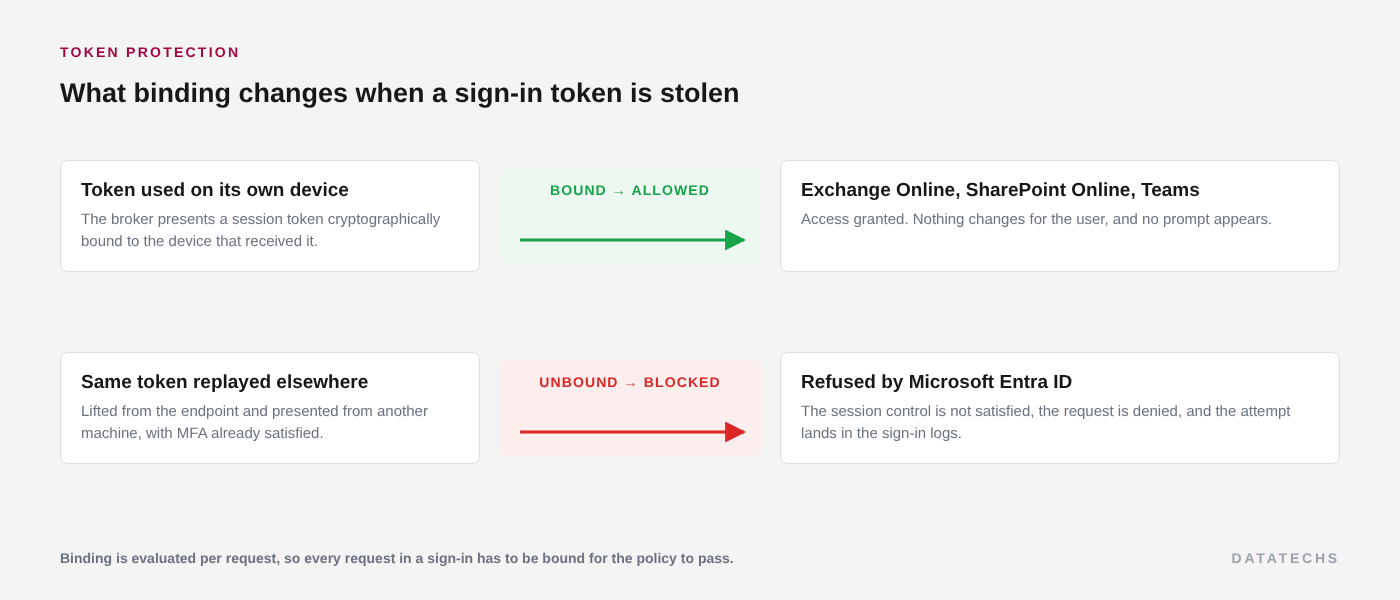
Microsoft Entra ID accepts the request only when the sign-in session token presented is cryptographically bound to the device that received it, which on Windows means the primary refresh token held by the Windows Account Manager broker. An application that does not authenticate through the broker cannot present a bound token at all, which is why the supported application list matters more here than device state does.
Step 1: Confirm what is in scope
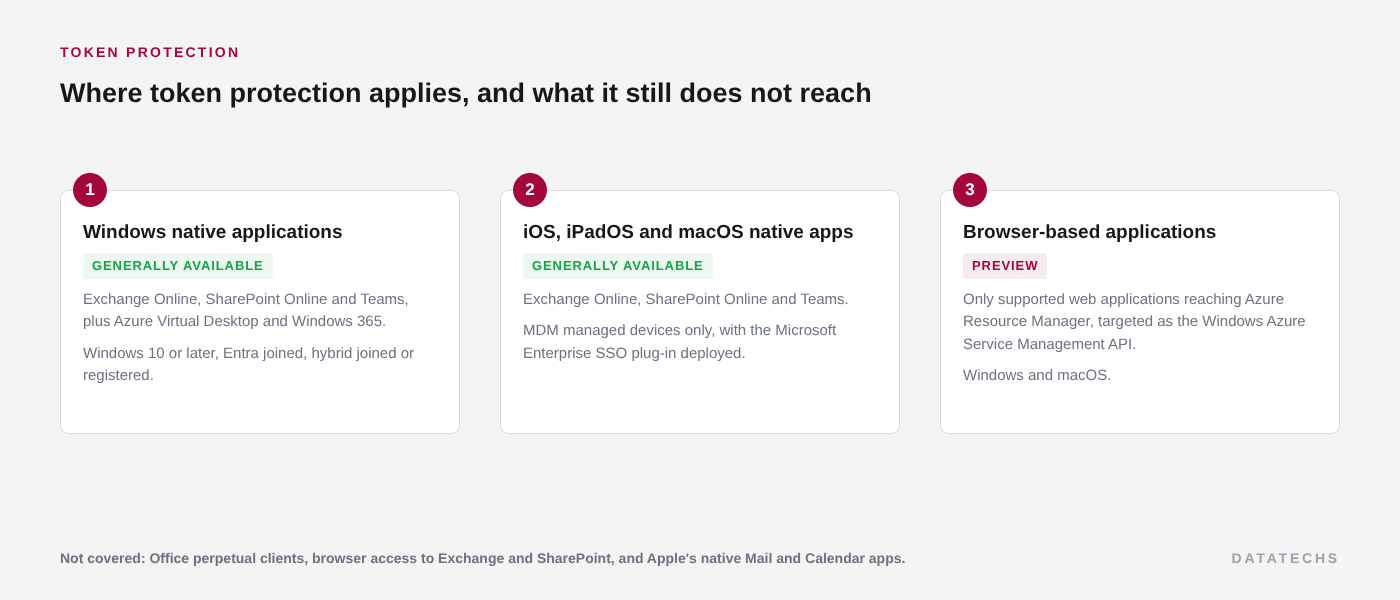
| Platform | Native applications | Browser-based applications |
|---|---|---|
| Windows | Generally available | Preview, and only for supported web applications reaching Azure Resource Manager |
| iOS and iPadOS | Generally available | Not supported |
| macOS | Generally available | Preview, and only for supported web applications reaching Azure Resource Manager |
The protected resources are Exchange Online, SharePoint Online and Microsoft Teams on every supported platform, plus Azure Virtual Desktop and Windows 365 on Windows.
Check these in the tenant before you go anywhere near a policy, because each one blocks a user rather than degrading gracefully:
- Office perpetual clients are not supported. Microsoft 365 Apps are.
- Browser access to Exchange Online and SharePoint Online is not covered, so the policy is a layer rather than a boundary.
- PowerShell modules reaching SharePoint, the Power Query extension for Excel outside Current Channel, and Visual Studio Code extensions reaching Exchange or SharePoint are blocked combinations.
- Apple's native Mail and Calendar applications do not support token protection. Move those users to Outlook first.
- Surface Hub and Windows-based Microsoft Teams Rooms devices are not supported clients.
- Microsoft Graph PowerShell needs
EnableLoginByWAMset, and Visual Studio needs the Windows authentication broker sign-in option.
Step 2: Exclude the device types that cannot bind
Several registration types cannot produce a bound token at all, so they fail the policy permanently rather than temporarily. Put them in a device filter exclusion on the policy before it goes anywhere near enforcement.
| Device type | Filter rule |
|---|---|
| Entra joined Windows 365 Cloud PCs | systemLabels -eq "CloudPC" and trustType -eq "AzureAD" |
| Entra joined Azure Virtual Desktop session hosts | systemLabels -eq "AzureVirtualDesktop" and trustType -eq "AzureAD" |
| Power Automate hosted machine groups | systemLabels -eq "MicrosoftPowerAutomate" and trustType -eq "AzureAD" |
| Entra joined Azure VMs with Entra sign-in enabled | profileType -eq "SecureVM" and trustType -eq "AzureAD" |
| Autopilot self-deploying devices | enrollmentProfileName -eq "Autopilot self-deployment profile", using your own profile name |
Devices deployed through bulk enrolment are unsupported as well and have no system label of their own, so either re-register them or keep their users out of the policy. Build the filter once in a reference tenant through the portal, then copy the rule string out of the exported policy rather than retyping it, because the rule grammar is unforgiving and the portal writes a version you can reuse verbatim.
Step 3: Create the policy in report-only
Where to find itentra.microsoft.com › Entra ID › Conditional Access › Policies › New policy
| Setting | Value | Reason |
|---|---|---|
| Users | A pilot group, with break glass accounts excluded | Start with privileged and specialised roles, which are the accounts worth stealing a token from. |
| Target resources | Office 365 Exchange Online, Office 365 SharePoint Online, Microsoft Teams Services, selected individually | Do not select the Office 365 application group. Microsoft warns it can cause unintended failures, which is the opposite of the usual advice. |
| Conditions, Device platforms | Windows, or iOS and macOS in the Apple policy | Keep Windows and Apple as separate policies. The supported application lists differ. |
| Conditions, Client apps | Mobile apps and desktop clients only | Leaving this unconfigured, or leaving Browser ticked, can block MSAL.js applications such as Teams on the web. |
| Conditions, Filter for devices | Exclude, using the rules from step 2 | These registration types can never satisfy the control. |
| Session | Require token protection for sign-in sessions | The control itself. |
| Enable policy | Report-only | The impact lands on applications nobody listed, so measure before enforcing. |
Where you have deployed Windows App, add Azure Virtual Desktop, Windows 365 and Windows Cloud Login to the resource selection as well.
Step 4: Read the results before you enforce
Where to read the resultsentra.microsoft.com › Entra ID › Monitoring & health › Sign-in logs
Open a request and the Basic Info pane carries a field called Token Protection - Sign In Session, reading either Bound or Unbound. Capture non-interactive sign-ins as well as interactive ones, because most of the volume against Exchange Online and SharePoint Online is non-interactive. Every request in a sign-in has to be bound for the control to be satisfied, so work through a user or a correlation ID rather than judging by the first row.
| Unbound code | Meaning | What to do |
|---|---|---|
| 1002 | No Entra device state. | Register or enrol the device, then retest. |
| 1003 | Device state does not satisfy the policy, usually an unsupported registration type. | Apply the device filter exclusions from step 2. |
| 1005 | Other, unspecified. | Collect the correlation ID before raising it, as there is nothing else to go on. |
| 1006 | Operating system version is not supported. | Patch the device and retest. |
| 1008 | The client does not use the platform broker, such as the Windows Account Manager. | Move the user to a supported application. This is the code that finds perpetual Office. |
Where sign-in logs reach a Log Analytics workspace, this is the query that answers which applications would break and for how many people. The name of the control in the log changed from Binding to SignInTokenProtection in 2023, so match on both.
AADNonInteractiveUserSignInLogs
| where TimeGenerated > ago(7d)
| where ConditionalAccessPolicies != "[]"
| where ResourceDisplayName in ("Office 365 Exchange Online",
                               "Office 365 SharePoint Online")
| mv-expand todynamic(ConditionalAccessPolicies)
| where ConditionalAccessPolicies["enforcedSessionControls"] contains '["Binding"]'
     or ConditionalAccessPolicies["enforcedSessionControls"] contains '["SignInTokenProtection"]'
| where ConditionalAccessPolicies.result != "reportOnlyNotApplied"
    and ConditionalAccessPolicies.result != "notApplied"
| extend NotSatisfied = ConditionalAccessPolicies["sessionControlsNotSatisfied"]
| extend Result = iff(NotSatisfied contains 'SignInTokenProtection', 'Block', 'Allow')
| summarize by Id, UserPrincipalName, AppDisplayName, Result
| summarize Requests = count(),
            Users    = dcount(UserPrincipalName),
            Block    = countif(Result == "Block"),
            Allow    = countif(Result == "Allow")
            by AppDisplayName
| extend PctAllowed = round(100.0 * Allow / (Allow + Block), 2)
| sort by Requests desc
To find the devices that will never pass rather than the applications, read the status code out of TokenProtectionStatusDetails. Compare it as a string: the published sample compares a string to a number and quietly returns nothing.
AADNonInteractiveUserSignInLogs
| where TimeGenerated > ago(7d)
| where TokenProtectionStatusDetails != ""
| extend Details    = parse_json(TokenProtectionStatusDetails)
| extend StatusCode = tostring(Details["signInSessionStatusCode"])
| where StatusCode == "1003"
| summarize Requests = count() by UserPrincipalName, AppDisplayName
| sort by Requests desc
Where a tenant has no workspace, filtering the sign-in logs in the portal gets you to the same answer, just more slowly.
Step 5: Deploy the same policy across the fleet
The session control is exposed through Microsoft Graph as secureSignInSession under sessionControls, carrying a single isEnabled property. At the time of writing it appears only in the beta endpoint, so fleet deployment runs against /beta and the definition is worth re-checking when you revisit it. Resolve the resource identifiers from each tenant's own service principals rather than hard coding them.
param($TenantId, $PilotGroupId, $BreakGlassGroupId)

Connect-MgGraph -TenantId $TenantId -NoWelcome `
    -Scopes 'Policy.ReadWrite.ConditionalAccess','Application.Read.All'

$resources = 'Office 365 Exchange Online',
             'Office 365 SharePoint Online',
             'Microsoft Teams Services'

$resourceIds = foreach ($name in $resources) {
    (Get-MgServicePrincipal -Filter "displayName eq '$name'" -Property AppId).AppId
}

$excludeRule = @(
    'systemLabels -eq "CloudPC" and trustType -eq "AzureAD"'
    'systemLabels -eq "AzureVirtualDesktop" and trustType -eq "AzureAD"'
    'systemLabels -eq "MicrosoftPowerAutomate" and trustType -eq "AzureAD"'
    'profileType -eq "SecureVM" and trustType -eq "AzureAD"'
) -join ' or '

$policy = @{
    displayName = 'CA17 - Require token protection - Windows'
    state       = 'enabledForReportingButNotEnforced'
    conditions  = @{
        users = @{
            includeGroups = @($PilotGroupId)
            excludeGroups = @($BreakGlassGroupId)
        }
        applications   = @{ includeApplications = $resourceIds }
        platforms      = @{ includePlatforms    = @('windows') }
        clientAppTypes = @('mobileAppsAndDesktopClients')
        devices        = @{ deviceFilter = @{ mode = 'exclude'; rule = $excludeRule } }
    }
    sessionControls = @{
        secureSignInSession = @{ isEnabled = $true }
    }
}

Invoke-MgGraphRequest -Method POST `
    -Uri  'https://graph.microsoft.com/beta/identity/conditionalAccess/policies' `
    -Body ($policy | ConvertTo-Json -Depth 10)
Run it once against a reference tenant, read the policy back, and keep that JSON in the same repository as the rest of your Conditional Access baseline. The fields that change per tenant are the two group identifiers and nothing else, which is what makes this worth scripting across twenty tenants rather than clicking twenty times.
Step 6: Audit which tenants have it, and in what state
The useful number is not how many tenants have a token protection policy. It is how many have one that is actually enforced.
$Tenants = Get-Content .\tenants.txt   # one tenant id per line

foreach ($TenantId in $Tenants) {

    Connect-MgGraph -TenantId $TenantId -NoWelcome -Scopes 'Policy.Read.All'

    $policies = (Invoke-MgGraphRequest -Method GET `
        -Uri 'https://graph.microsoft.com/beta/identity/conditionalAccess/policies').value

    $tp = @($policies | Where-Object {
        $_.sessionControls.secureSignInSession.isEnabled -eq $true
    })

    [pscustomobject]@{
        Tenant     = $TenantId
        Policies   = $tp.Count
        Enforced   = ($tp | Where-Object { $_.state -eq 'enabled' } |
                      ForEach-Object { $_.displayName }) -join ', '
        ReportOnly = ($tp | Where-Object { $_.state -eq 'enabledForReportingButNotEnforced' } |
                      ForEach-Object { $_.displayName }) -join ', '
        Disabled   = ($tp | Where-Object { $_.state -eq 'disabled' } |
                      ForEach-Object { $_.displayName }) -join ', '
    }
}
Report-only is where these policies go quiet. A tenant that has sat in report-only since the spring is not protected, and the ReportOnly column is the one that tells you which conversations are still open.
Troubleshooting
| Symptom | Cause | Fix |
|---|---|---|
| Outlook and Teams are fine, Word and Excel are blocked. | An Office perpetual client, which cannot present a bound token. | Move the user to Microsoft 365 Apps, or exclude them until you have. |
| Teams on the web stops working after the policy goes on. | Browser left selected, or the Client apps condition left unconfigured. | Set Client apps to Mobile apps and desktop clients only. |
| Cloud PC and session host users are permanently unbound with code 1003. | Unsupported registration type. | Add the device filter exclusions from step 2. |
| A script that used to run now fails against Exchange Online. | The module is not going through the broker, giving code 1008. | Set EnableLoginByWAM for Microsoft Graph PowerShell, or move the workload to a supported client. |
| Users see a confusing error rather than a prompt to register. | The device is behind on Windows updates. | Patch to the September 2026 update or later, which gives the registration prompt instead. |
| Mail stops on an iPhone or a Mac. | Apple's native Mail and Calendar applications are not supported. | Move those users to Outlook before the Apple policy is enforced. |
| Every Apple device shows as unbound in report-only. | Registration is not hardware backed yet, which report-only cannot distinguish from a real failure. | Deploy the Enterprise SSO plug-in and have users sign in once to upgrade the registration. |
| A guest user is blocked with no clear reason. | Guests are supported only where their home tenant meets the device registration requirement. | Exclude guests from the policy, or raise it with the contact who manages their tenant. |
Once a tenant's report-only data is clean and the exclusions are in place, enforcing is a one-field change, and it closes the replay route that multi-factor authentication on its own leaves open.