
An application signing in with its own credential is not a user. It does not get an MFA prompt, the Conditional Access policies built around users do not apply to it, and the permissions it was granted on the day it was installed are still there today. Last week's ConnectWise Cloud Backup incident showed what that looks like when the credential ends up in the wrong hands.
This is a composite of the third-party app permission reviews we run in client tenants: what turns up, why it is there, and the four steps that close it. Most of it was granted for a good reason by whoever needed a tool working that day, and never revisited. Allow about an hour per tenant the first time.
Applies to
- Any Microsoft 365 tenant with third-party apps installed: backup, migration, email signature, reporting, PSA and RMM integrations.
- Cloud Application Administrator or Application Administrator to review, disable and revoke. Reports Reader to read the sign-in and audit logs.
- Entra ID P1 for 30 days of sign-in and audit history and the Usage & insights reports. Without it, the logs hold seven days.
Why this needs its own review
There are two kinds of permission an app can hold, and they behave very differently.
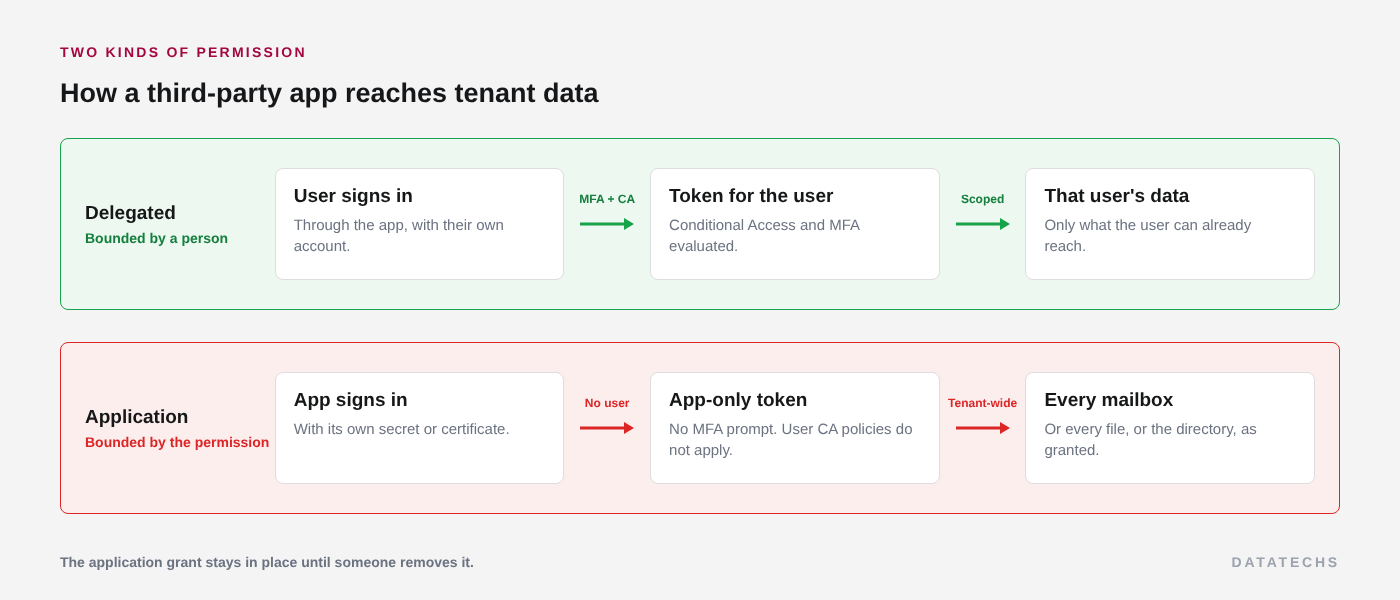
With application permissions, Mail.ReadWrite means every mailbox. A backup product needs that to do its job, so the review is not about removing it from tools in use. It is about finding the grants nobody uses, and the ones that hold more than the tool needs.
What turns up
Across the tenants in this composite, a business of around forty people typically had between fifteen and thirty third-party apps holding consent, and three to five of them held application permissions over every mailbox or every file.
| Finding | Why it matters | Fix |
|---|---|---|
| Apps from tools no longer in use: a migration utility, a trialled backup product, a previous provider's reporting tool. | The access outlives the relationship. Nobody is watching it, and nobody would notice it being used. | Disable, wait, then revoke. Step 3. |
| Tenant-wide mail or file access for a tool that needs far less. | A signature or reporting tool rarely needs to read every mailbox. | Ask the vendor for the minimum. Replace or rescope. |
Escalation permissions: AppRoleAssignment.ReadWrite.All, RoleManagement.ReadWrite.Directory, Application.ReadWrite.All, Directory.ReadWrite.All. |
An app holding these can grant itself, or another app, further permissions or directory roles. | Treat as Global Administrator equivalent. Justify each one in writing. |
| A third-party service principal holding a directory role, usually Exchange Administrator. | Standing privilege with no person attached and no PIM in front of it. | Remove unless the vendor documents the requirement. |
| Credentials on the service principal in the client tenant. | A vendor's multi-tenant app normally keeps its credential on its own app registration. One added in your tenant needs an owner who can explain it. | Identify who added it from the audit log. Remove if unexplained. |
| User consent open to any app. | Anyone can grant a new app delegated access to their own mail and files. | Restrict it. Step 4. |
| Seven days of sign-in history. | Not enough to establish what an app did last month. | Entra ID P1, which Business Premium includes. |
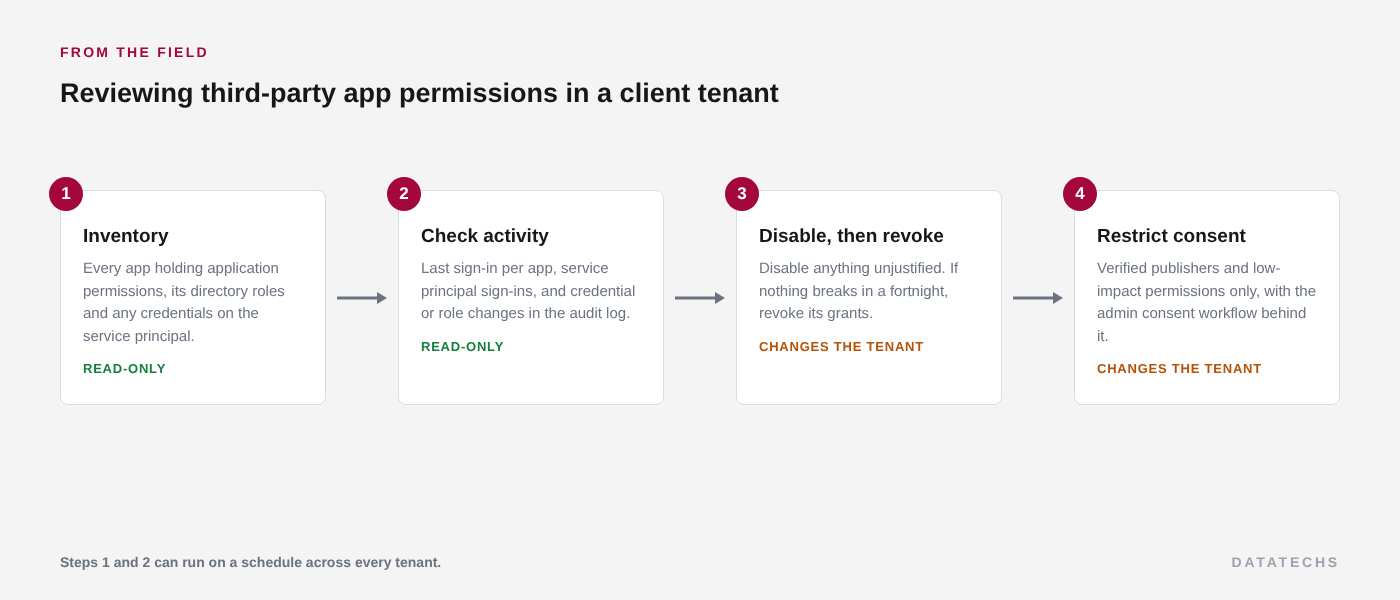
Step 1: List the apps holding application permissions
Start from the enterprise apps list and work through every app that is not published by Microsoft. Setting the application type filter to enterprise applications removes most of the Microsoft entries.
Where to find itentra.microsoft.com › Entra ID › Enterprise apps › All applications
For each app, open its permissions and read the Admin consent tab, which holds the grants that apply to the whole organisation, including application permissions.
Where to find itentra.microsoft.com › Entra ID › Enterprise apps › All applications › (select the app) › Permissions
Record four things per app: who publishes it, whether the client still uses it, which application permissions it holds, and whether any of them are high impact. Treat Mail.ReadWrite, Mail.Send, Files.ReadWrite.All, Sites.ReadWrite.All and full_access_as_app as high impact, alongside the escalation permissions in the table above. Directory roles held by an app, and credentials added to its service principal, show up in the audit log in step 2.
Step 2: Check what each app has actually been doing
Before removing anything, find out whether it is in use. The service principal sign-in activity report gives the last time each app signed in, and whether that was app-only or on behalf of a user.
Where to read the resultsentra.microsoft.com › Entra ID › Monitoring & health › Usage & insights
For the individual sign-ins, including source IP addresses, use the service principal sign-ins in the sign-in logs. Filter on the app ID shown on the app's overview page.
Where to find itentra.microsoft.com › Entra ID › Monitoring & health › Sign-in logs
Then check the audit log for changes made to or by the app. These are the activity names worth filtering on:
| Activity | What it shows |
|---|---|
| Add service principal credentials | A secret or certificate was added to a service principal in this tenant. |
| Update application - Certificates and secrets management | Credentials changed on an app registration in this tenant. |
| Add app role assignment to service principal | An app was granted an application permission. |
| Add delegated permission grant | An app was granted delegated permissions. |
| Add member to role | A user or service principal was given a directory role. |
Where to find itentra.microsoft.com › Entra ID › Monitoring & health › Audit logs
Step 3: Disable first, then revoke
Disabling is reversible and revoking is not, so disable anything you cannot justify and leave it for a fortnight. If nothing breaks and nobody asks, revoke. Disabling prevents any new tokens being issued for the app in that tenant.
Where to find itentra.microsoft.com › Entra ID › Enterprise apps › All applications › (select the app) › Properties
Set Enabled for users to sign-in? to No and save. The app stays in the list with its permissions intact, so the change can be reversed the same way.
To revoke, return to the app's Permissions page from step 1 and use Revoke permission on the Admin consent tab. Grants on the User consent tab cannot be revoked from the portal and need PowerShell or Graph. Revoking does not stop a user consenting again, which is what step 4 is for.
Step 4: Close the route back in
Where to find itentra.microsoft.com › Entra ID › Enterprise apps › Consent and permissions › User consent settings
Set user consent to Allow user consent for apps from verified publishers, for selected permissions, or turn it off entirely if the client prefers. Pair either with the admin consent workflow, so requests arrive with you as a queue rather than as support tickets. The change applies to future consent only, which is why it comes after the clean-up rather than instead of it.
Troubleshooting
| Symptom | Cause | Fix |
|---|---|---|
| Microsoft apps fill the enterprise apps list. | First-party Microsoft apps are listed alongside third-party ones. | Set the application type filter to enterprise applications, and check the publisher before acting on anything. |
| A revoked app reappears with delegated permissions. | A user consented to it again. | Restrict user consent, step 4. |
| No sign-in history for an app you know is in use. | The tenant has no Entra ID P1, so only seven days are kept. | Check again inside the seven-day window, and plan Entra ID P1 for the tenant. |
Repeat steps 1 and 2 each quarter, and the next time an app you rely on makes the news, you already know which clients have it installed.