
A meeting invitation from an external sender is written into a user's calendar before anyone opens the message, and there is no mailbox setting that stops it. Microsoft documents the Calendar Attendant on a user mailbox as running with AutomateProcessing set to AutoUpdate, and states that the value cannot be changed on a user mailbox.
That makes calendar phishing a mail flow and remediation problem rather than a mailbox problem. This covers how an invitation becomes a calendar item, how to audit calendar processing across a tenant, how to set a baseline on room and resource mailboxes without breaking external booking, how to flag external invitations in transit, and how to remove the ones that have already landed. Allow about an hour for the first tenant and twenty minutes for each one after that.
Applies to
- Exchange Online mailboxes in Microsoft 365, including room and equipment mailboxes.
- The Exchange Online PowerShell module, connected with Organization Management or Recipient Management for the calendar processing steps, and rights to create mail flow rules for step 3.
- Microsoft Defender for Office 365 Plan 1 or Plan 2 for the remediation in step 5. Exchange Online Protection alone covers the filtering in step 4 but not Explorer.
- Purview audit search for step 6.
Nothing here requires a change on the Outlook client, and nothing here depends on the user noticing anything.
How the invitation becomes a calendar item
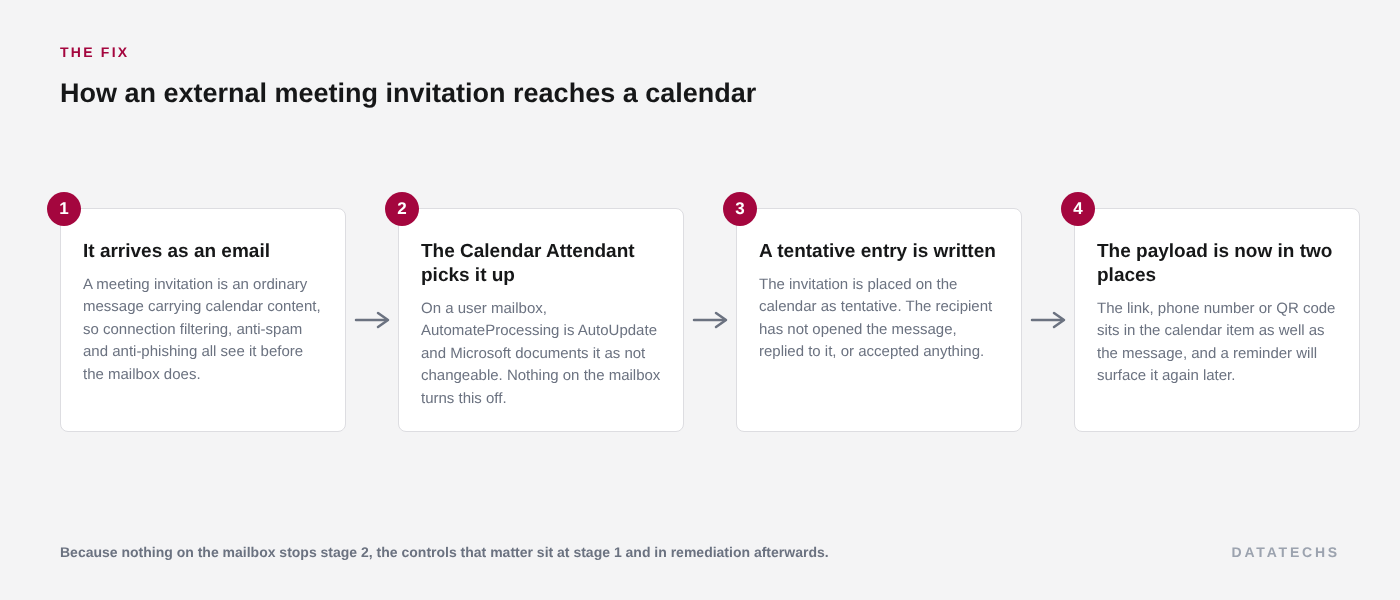
A meeting invitation is an ordinary email message that carries calendar content. It is filtered like any other message, delivered to the mailbox, and then processed by the Calendar Attendant, which writes a tentative entry on the calendar. The recipient has not opened the message or responded to it at that point.
Two documented limits shape everything that follows. Set-CalendarProcessing is effective only on resource mailboxes, so a script that runs it against user mailboxes is not doing what it appears to be doing. And on a user mailbox AutomateProcessing is AutoUpdate and cannot be changed. The settings you can genuinely change sit on room and resource mailboxes, in mail flow, and in the filtering and remediation stack.
Step 1: Audit calendar processing across the tenant
Resource mailboxes are where calendar processing is configurable, and they are also the mailboxes most likely to have been loosened at some point to make one external booking work.
Where to find itadmin.exchange.microsoft.com › Recipients › Resources
Connect-ExchangeOnline -ShowBanner:$false

Get-Mailbox -RecipientTypeDetails RoomMailbox,EquipmentMailbox -ResultSize Unlimited |
    ForEach-Object {
        $cp = Get-CalendarProcessing -Identity $_.Identity

        [pscustomobject]@{
            Mailbox          = $_.PrimarySmtpAddress
            Type             = $_.RecipientTypeDetails
            Processing       = $cp.AutomateProcessing
            ExternalAccepted = $cp.ProcessExternalMeetingMessages
            AllBookInPolicy  = $cp.AllBookInPolicy
            Delegates        = ($cp.ResourceDelegates -join '; ')
        }
    } |
    Sort-Object ExternalAccepted -Descending |
    Format-Table -AutoSize
ProcessExternalMeetingMessages is $false by default, so every True in that column was set by someone. Find out why before changing it. A room that takes bookings from a customer, a visitor management system or a shared reception process needs it.
Step 2: Set the resource mailbox baseline
| Setting | Value | Reason |
|---|---|---|
| ProcessExternalMeetingMessages | $false | Meeting requests from outside the organisation are rejected. This is the documented default, so this setting is about returning rooms to it. |
| AutomateProcessing | AutoAccept, or AutoUpdate where a person approves | Decides whether the resource booking attendant accepts and declines on its own. A booking decision rather than a security one, but record it per room. |
| AllBookInPolicy | $false, with BookInPolicy populated | Limits automatic acceptance to named users or groups instead of everyone who can find the room. |
| ResourceDelegates | At least one named person | Requests that fall outside policy reach somebody rather than being accepted or declined silently. |
| DeleteComments | $true | Strips the body text of an incoming request, so a link does not persist on a shared room calendar. Applies only when AutomateProcessing is AutoAccept. |
| RemoveOldMeetingMessages | $true | Clears superseded updates and responses. This is the default and is worth confirming rather than setting. |
$ExternalBookingRooms = @(
    'boardroom@contoso.co.uk'
)

$Rooms = Get-Mailbox -RecipientTypeDetails RoomMailbox,EquipmentMailbox -ResultSize Unlimited |
    Where-Object { $_.PrimarySmtpAddress -notin $ExternalBookingRooms }

foreach ($Room in $Rooms) {

    Set-CalendarProcessing -Identity $Room.Identity `
        -ProcessExternalMeetingMessages $false `
        -DeleteComments $true `
        -RemoveOldMeetingMessages $true

    Write-Output "Baseline applied: $($Room.PrimarySmtpAddress)"
}
Keep the exclusion list in the tenant documentation rather than only in the script, and test one room before applying across an estate. Teams Rooms devices book through the room mailbox, and so do several visitor and desk booking products, so a change here can surface somewhere nobody associates with calendars.
Step 3: Flag external meeting invitations in mail flow
Mail flow rules can match on message type, and Calendaring is one of the documented values. Combined with a sender located outside the organisation, that puts a banner on every external invitation without touching a mailbox.
Where to find itadmin.exchange.microsoft.com › Mail flow › Rules
$Notice = '<div style="padding:10px;background:#F4F4F5;">' +
          'This meeting invitation came from outside the organisation. ' +
          'Check the sender before joining it or following any link in it.</div>'

New-TransportRule -Name 'Notice: external meeting invitation' `
    -FromScope NotInOrganization `
    -SentToScope InOrganization `
    -MessageTypeMatches Calendaring `
    -ApplyHtmlDisclaimerLocation Prepend `
    -ApplyHtmlDisclaimerText $Notice `
    -ApplyHtmlDisclaimerFallbackAction Ignore `
    -Mode Audit
Audit mode records matches without applying the disclaimer. Leave it there for a few days and read what it caught. External invitations are normal traffic in most businesses, which is why the action is a banner rather than a delete or a quarantine. When the match list looks right:
Set-TransportRule -Identity 'Notice: external meeting invitation' -Mode EnforceTwo notes on the fallback action. Microsoft advises against Wrap on rules affecting incoming external mail because it interferes with Safe Attachments scanning, and Reject returns the message to the sender, which is more than a notice warrants. Ignore delivers the invitation without the banner when the disclaimer cannot be applied, which is the right trade here. Send a test invitation from an external account once the rule is enforced, because what the recipient sees depends on the client they are using.
Step 4: Keep the filtering stack in front of it
Because the invitation arrives as a message, everything in the protection stack sees it before the Calendar Attendant does. That makes the state of the anti-spam, anti-phishing and Safe Links policies the single biggest factor in how many invitations reach a calendar at all.
Where to find itsecurity.microsoft.com › Email & collaboration › Policies & rules › Threat policies › Preset security policies
In a tenant running hand-built policies that have drifted over several years, moving to the Standard or Strict preset is the step that does the most work for the least effort. Where impersonation protection is configured, add the domains the business genuinely receives invitations from, because that is the list an attacker will imitate.
Step 5: Remove invitations that have already landed
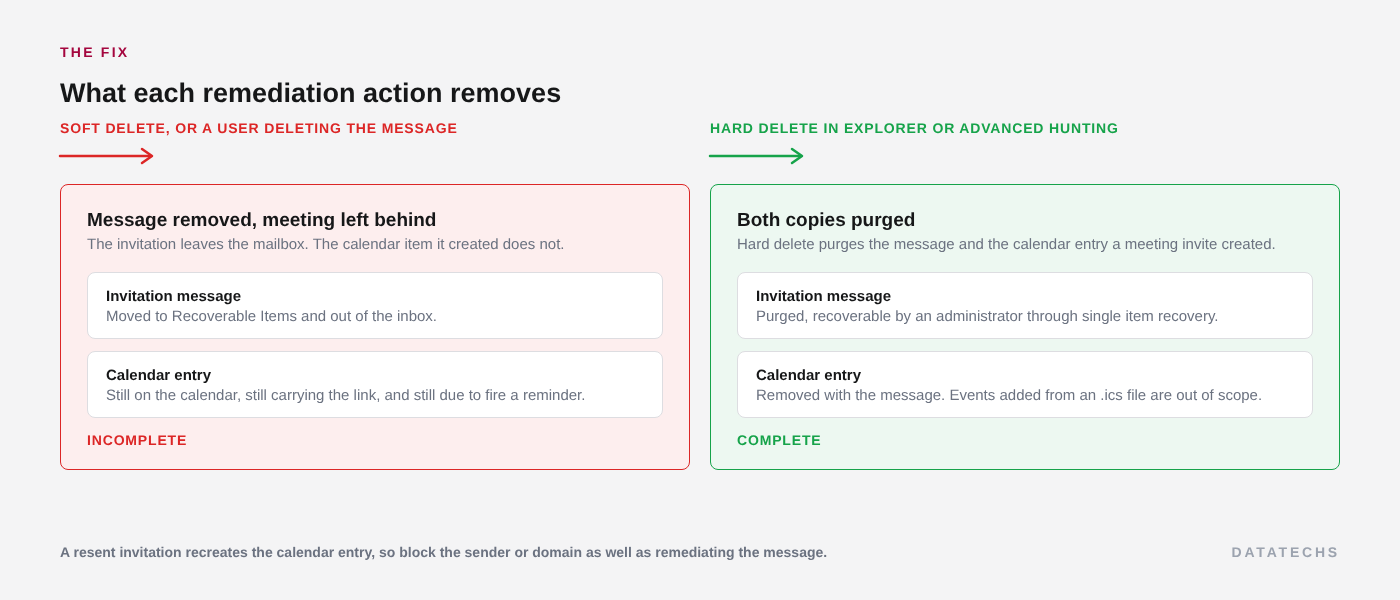
Deleting the message is not the same as clearing the meeting. The calendar entry is a separate item, and only one remediation action removes both: hard delete purges the message and the corresponding calendar entry for meeting invite messages. Soft delete does not.
Where to run itsecurity.microsoft.com › Email & collaboration › Explorer
Hard deleted items remain recoverable by an administrator through single item recovery, so this is reversible if the hunt was too broad. Two limits are worth knowing before you start. Events added from an .ics file attachment are out of scope, and a resent invitation recreates the calendar entry, so block the sender or the sending domain first and remediate afterwards.
Where to block the sendersecurity.microsoft.com › Email & collaboration › Policies & rules › Threat policies › Tenant Allow/Block Lists
Step 6: Check whether it is already happening
Calendar item creation is audited by default. The Create mailbox action covers an item created in the Calendar, Contacts, Draft, Notes or Tasks folder, and it is enabled by default for owner, delegate and admin logons, so a week of history is usually already there.
$Events = Search-UnifiedAuditLog -Operations Create -ResultSize 5000 `
    -StartDate (Get-Date).AddDays(-7) -EndDate (Get-Date)

$Events | ForEach-Object {

    $Data = $_.AuditData | ConvertFrom-Json

    if ($Data.Item.ParentFolder.Path -like '*Calendar*') {
        [pscustomobject]@{
            Created = $Data.CreationTime
            Mailbox = $Data.MailboxOwnerUPN
            Subject = $Data.Item.Subject
        }
    }
} | Sort-Object Created -Descending
Repeated subjects across unrelated mailboxes are the pattern to look for. Take anything suspicious back to message trace for the same window to see where it came from and how widely it was delivered.
Get-MessageTraceV2 -StartDate (Get-Date).AddDays(-7) -EndDate (Get-Date) `
    -RecipientAddress 'user@contoso.co.uk' -ResultSize 5000 |
    Select-Object Received, SenderAddress, Subject, Status
Get-MessageTraceV2 searches the last 90 days and returns at most ten days of data per query, so a wider window needs several runs rather than one.
Troubleshooting
| Symptom | Cause | Fix |
|---|---|---|
| Calendar processing changes made against user mailboxes have no effect. | Set-CalendarProcessing is effective only on resource mailboxes, and AutomateProcessing cannot be changed on a user mailbox. |
Use steps 3 to 5. There is no mailbox-side control to apply here. |
| A meeting room stopped accepting bookings from a customer. | The baseline set ProcessExternalMeetingMessages to $false on a room that needs it. |
Set it back to $true on that one mailbox, add it to the exclusion list, and use BookInPolicy to control who can book it. |
| The message was removed but the meeting is still on the calendar. | A soft delete, or the user deleting the invitation themselves. | Hard delete the message from Explorer, which removes the calendar entry it created. |
| The same meeting reappears days after remediation. | The sender reissued the invitation and nothing blocks them. | Add the sender or domain to the Tenant Allow/Block List, then remediate again. |
| The mail flow rule matches nothing in audit mode. | Another rule earlier in the list stops processing, or the tenant genuinely receives no external invitations in that window. | Check rule priority and any StopRuleProcessing action above it, then send a test invitation from an external account. |
| An invitation arrives with no banner once the rule is enforced. | The disclaimer could not be applied, usually because the message is signed or encrypted, and the fallback action is Ignore. | Expected behaviour. Do not switch the fallback to Wrap on inbound external mail. |
Steps 1 and 2 are per tenant work, and steps 3 to 5 are the same configuration everywhere, which makes the whole thing worth writing into your onboarding checklist once rather than rebuilding it per customer.