

Since 3 November 2026, every Entra dynamic group, dynamic administrative unit and access package auto-assignment policy that uses the memberOf operator has stopped updating. Nothing is deleted and nothing raises an error. Membership stays exactly where it was on the day, so a leaver keeps the licence, Conditional Access scope and Intune assignments the group gave them, and a new starter never receives them.
This guide covers how to find every affected object in a tenant from the Entra admin centre, measure how far membership has drifted, replace or convert each one, and confirm the result. Allow about thirty minutes per tenant, plus ten for each group that needs reconciling.
Applies to
- Microsoft Entra ID tenants with P1 or P2, where dynamic membership groups or dynamic administrative units are in use.
- Tenants with Microsoft Entra ID Governance or Microsoft Entra Suite, for access package auto-assignment policies.
- At least User Administrator for groups, Privileged Role Administrator for administrative units and Identity Governance Administrator for access packages. If you work through GDAP, check the roles in each relationship cover all three.
Rules that do not use memberOf are unaffected and keep processing as normal.
What changed on 3 November
The memberOf operator let a dynamic rule pull in the members of other groups, written as user.memberof -any (group.objectId -in [...]) or the device.memberof equivalent. It was only ever a public preview. Microsoft ended the preview because it slowed dynamic membership processing for every group in the tenant, and announced the date in Message Center items MC1448379, MC1488834 and MC1529463.
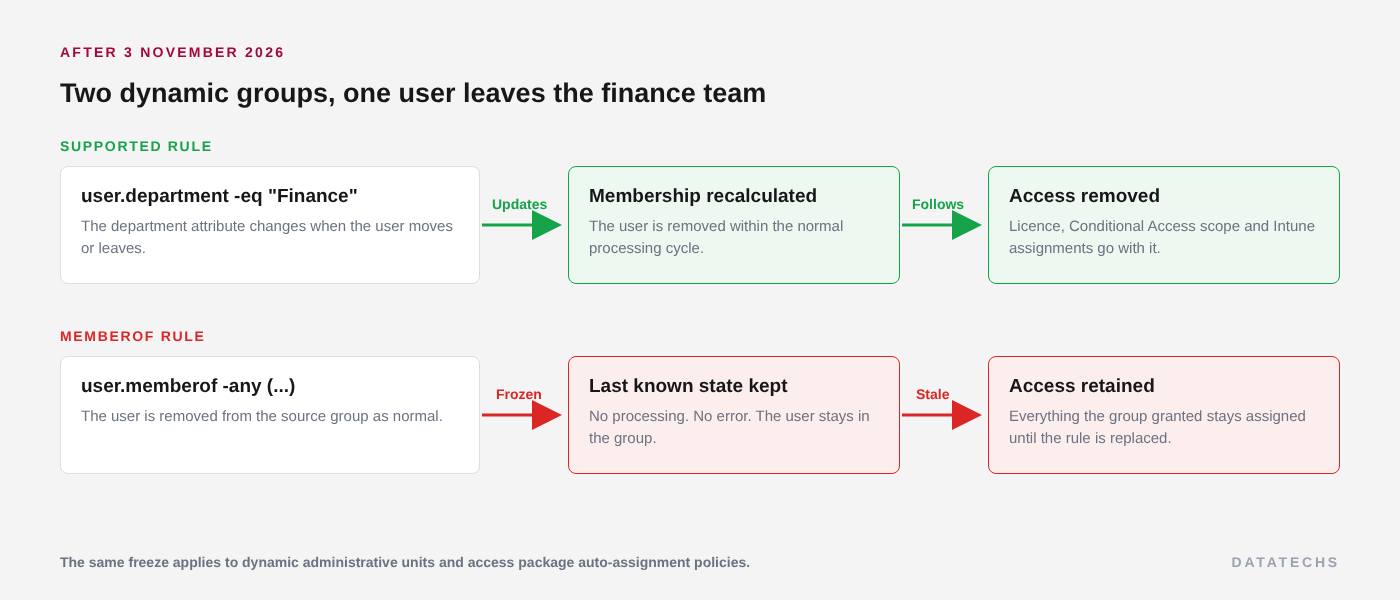
Access package policies are quarantined rather than frozen: the policy remains, but no assignments are added or removed until memberOf is taken out of its rule. The effect on access is the same.
Step 1: Find affected dynamic groups
Where to find itentra.microsoft.com › Entra ID › Groups › All groups
Filter the list to dynamic membership types, then open each group and read its rule.
Where to read the ruleentra.microsoft.com › Entra ID › Groups › All groups › (select a group) › Dynamic membership rules
Any rule containing memberof is affected. Record the group name, what it is used for, and the object IDs listed inside the rule: those are its source groups. A spreadsheet with one row per affected object is the worklist for the rest of this guide.
Check device groups as carefully as user groups. Device groups built with device.memberof are common for Intune targeting, and a frozen one shows up as new devices missing their configuration rather than as an access problem.
Step 2: Find affected administrative units and access packages
Administrative units. Open each unit with a dynamic membership type and read its rule the same way.
Where to find itentra.microsoft.com › Entra ID › Roles & admins › Admin units › (select a unit) › Dynamic membership rules
Access packages. Only tenants licensed for Entra ID Governance can have these, so skip the rest. Open each access package, go to its policies, and check the rule on any auto-assignment policy.
Where to find itentra.microsoft.com › ID Governance › Entitlement management › Access package › (select a package) › Policies
Add anything affected to the same worklist.
Step 3: Measure the drift
Before changing anything, find out who is in the frozen group who should not be, and who is missing. A memberOf group only ever took the direct user or device members of its source groups, so that is the comparison to make. The preview also never removed members when a source group was deleted or emptied, so some drift may predate 3 November.
Where to find itentra.microsoft.com › Entra ID › Groups › All groups › (select a group) › Members
- Download the member list of the frozen group, using Bulk operations and Download members.
- Find each source group by searching All groups for the object IDs recorded in step 1, and download their member lists the same way.
- Combine the source group lists into one, ignoring any nested groups, since only direct members ever counted.
- Compare that list with the frozen group's members on object ID.
| Result | Meaning | Priority |
|---|---|---|
| In a source group, not in the frozen group | Missing: should have access and does not. | Second. Usually a new starter or new device. |
| In the frozen group, not in any source group | Stale: still holds access it should have lost. | First. Usually a leaver or someone who changed role. |
| In both | Correct. | None. |
Step 4: Choose a replacement
A memberOf rule cannot be combined with any other condition, so there is no partial edit. The rule is either rewritten on a supported attribute, or the object becomes assigned. Choose based on what the group feeds.
| What the group feeds | Replacement | Reason |
|---|---|---|
| Conditional Access include or exclude | Add the source groups to the policy directly, then retire the dynamic group. | Policies accept several groups, so the combining group adds nothing. |
| Intune policy or app assignment | Assign the source groups directly, or rewrite the rule on a device attribute such as device.enrollmentProfileName. |
Intune accepts several group assignments per payload. |
| Group-based licensing | Rewrite the rule on a user attribute, such as user.department or user.extensionAttribute1, or assign the licence to each source group. |
Group-based licensing does not support nested groups, so nesting the source groups is not an option. |
| Microsoft 365 group for Teams or SharePoint | Rewrite the rule on a user attribute, or convert to assigned membership. | The group ID is kept on conversion, so the team and site are unaffected. |
| Dynamic administrative unit | Rewrite the rule on a user or device attribute, or convert to assigned. | Assigned units can also hold groups, which dynamic units cannot. |
| Access package auto-assignment | Rewrite the rule on a supported attribute. | Where no attribute fits, move to request-based or direct assignment before removing the policy, so nobody loses access in the gap. |
An attribute rule is the better long-term answer, because it keeps updating without anyone maintaining it. Convert to assigned only where no reliable attribute exists, and record who owns the membership afterwards.
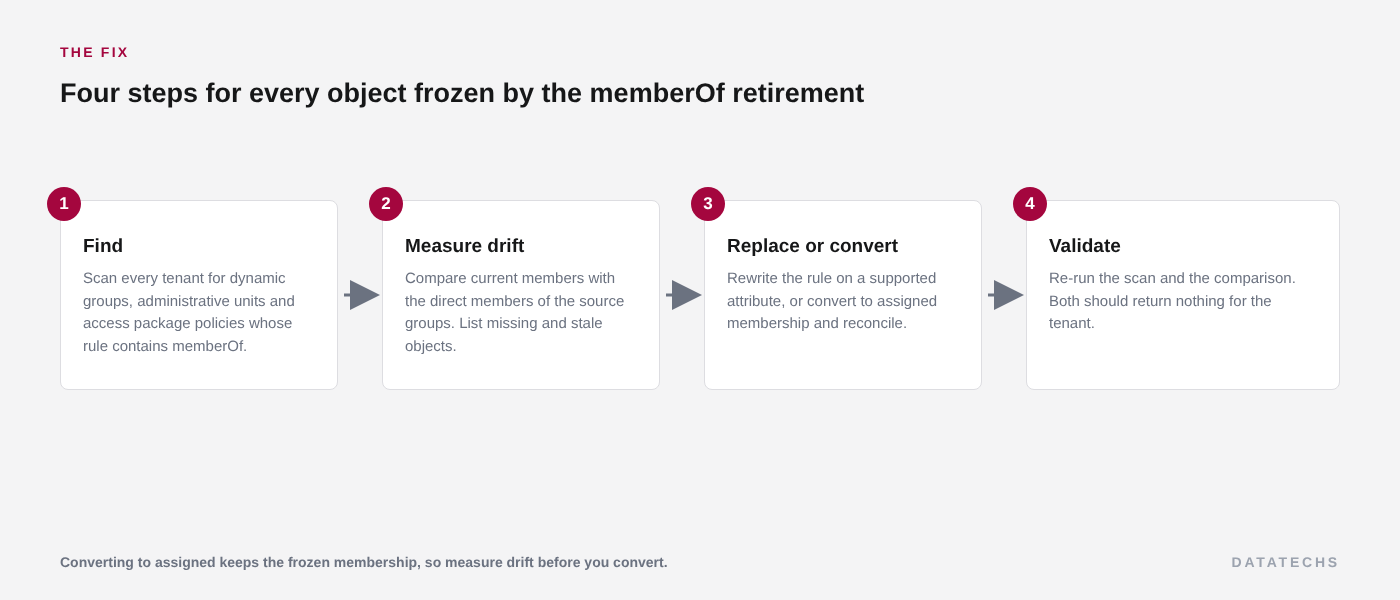
Step 5: Apply the change
To rewrite a group rule, open the group's dynamic membership rules, select Edit on the rule syntax, replace the whole rule, and save. Processing restarts once the rule no longer contains memberOf.
Where to find itentra.microsoft.com › Entra ID › Groups › All groups › (select a group) › Dynamic membership rules
Before saving, use the Validate Rules tab against a handful of known users, including at least one from the stale list, so the new rule is proved against real accounts rather than assumed.
To convert a group to assigned, change its membership type. The group keeps its name and object ID, so every policy, licence and team that references it keeps working.
Where to find itentra.microsoft.com › Entra ID › Groups › All groups › (select a group) › Properties › Membership type
Set Membership type to Assigned and save. Then reconcile from the step 3 comparison: remove the stale members first, then add the missing ones, from the group's Members page.
To convert an administrative unit to assigned, set its membership type to Assigned and confirm. Current members stay in place, the rule stops processing, and the unit can then hold groups as well as users and devices. Reconcile it the same way.
Where to find itentra.microsoft.com › Entra ID › Roles & admins › Admin units › (select a unit) › Properties
To fix an access package policy, open the auto-assignment policy, select Edit on the rule, replace it with a supported rule, and save. Assignments start processing again once memberOf is gone.
Step 6: Validate
Repeat steps 1 and 2. No rule in the tenant should contain memberof. For every group you rewrote, give processing time to complete, then repeat the step 3 comparison against the new rule's intended population and confirm there are no stale users left. For administrative units, also check that the administrators scoped to the unit can still manage the users they should, and no others.
Finally, add the step 1 and step 2 checks to your tenant onboarding checklist. A newly inherited tenant can still carry a memberOf rule that nobody has looked at since it stopped updating.
Troubleshooting
| Symptom | Cause | Fix |
|---|---|---|
| A leaver still holds a licence or Conditional Access scope. | The group granting it uses memberOf and froze on 3 November. |
Steps 3 to 5, starting with stale users. |
| A new device is not receiving Intune policies or apps. | The device group uses device.memberof and has stopped adding members. |
Assign the source groups directly, or rewrite on a device attribute. |
| The rule builder will not show the existing rule. | memberOf was never supported in the rule builder. |
Select Edit and work in the Rule syntax box instead. |
Saving a rule that adds a condition alongside memberOf fails. |
The operator cannot be combined with other rules. | Replace the whole rule, per step 4. |
| Access package assignments are not being added or removed. | The auto-assignment policy is quarantined. | Remove memberOf from the policy rule, then check assignments. |
| A converted group still contains people who left. | Conversion keeps the membership as it was frozen. | Reconcile with the step 3 comparison. |
| Licences assigned to a group of groups do not reach users. | Group-based licensing does not support nested groups. | Assign to each source group, or use an attribute rule. |
Once step 6 comes back clean in a tenant, the checks in steps 1 and 2 are the only part worth repeating at each scheduled review.